Managing Incomplete Process Executions in Creatio: A Signal Event Design Pattern
Using Wait for signal and Throw signal events to create a controlled fallback path for incomplete user interactions
Business process automation is often designed around an optimistic assumption: users will complete the actions presented to them. In reality, users may close a page, navigate away, lose connectivity, or leave a task unfinished. When that happens, a Creatio process can remain in a running state because the process never receives the event required to continue and reach its final element.
For no-code Creatio builders, this is more than a Process Log cleanup issue. It is a process lifecycle design challenge. As an environment matures and automation expands, resilient design requires planning for both the expected user path and the moments when an expected interaction never occurs.
One practical design pattern combines Creatio’s Wait for signal and Throw signal intermediate events to create a controlled fallback path for incomplete process executions. The pattern preserves the intended user experience while giving administrators and no-code developers a deliberate way to move eligible process instances toward a meaningful conclusion.
In this article, TechAdv examines a common page-driven scenario, explains how the signal pattern works, and highlights the governance, testing, and design decisions that help support maintainable Creatio automation.eatio automation.
How an Open Page Can Leave a Process Running
Consider a business process initiated when a user clicks a button on a Creatio page. The process creates a shell
record based on the current user and then opens a mini page so the user can add the remaining details
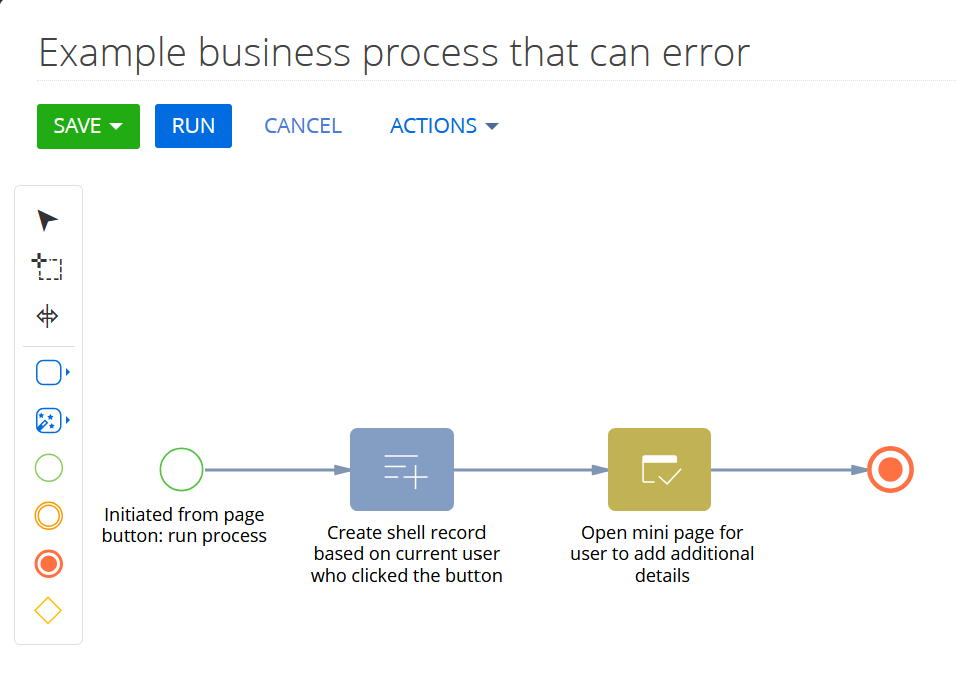 Figure 1. A process that creates a shell record and opens a mini page for the user to enter additional details
In the expected scenario, the user enters the required information and completes the mini page. Creatio activates
the outgoing flow and the process reaches its final element. The execution can remain waiting if the user:
- Closes the mini page without completing it
- Navigates away from the page or closes the browser
- Loses connectivity
- Leaves the page open without taking further action
- Does not perform the action expected by the process
Without the expected page event, the outgoing flow is not activated and the process cannot reach its final element. From the process engine’s perspective, the execution is still waiting. From the administrator’s perspective, it is an incomplete process execution.
Why Incomplete Executions Matter
A small number of running processes may not immediately attract attention. The issue becomes more noticeable
when a frequently used process repeatedly creates incomplete executions. Potential operational concerns include:
• Manual review and cancellation of abandoned executions
• Difficulty distinguishing active work from abandoned processes
• Less efficient troubleshooting and Process Log review
• Retention of execution state for processes that no longer provide business value
• Additional system overhead as active instances accumulate
The better approach is to account for this risk during process design instead of relying entirely on periodic manual cleanup.
The following walkthrough shows how a no-code Creatio builder can add a signal-based fallback to the page�driven process shown in the screenshots.
Designing an Alternate Completion Path
One potential solution is to add a Wait for signal event as an alternate path for the user page element. The normal path still allows the process to finish when the user completes the page. The signal path provides a fallback for instances that have not completed by a predetermined time.
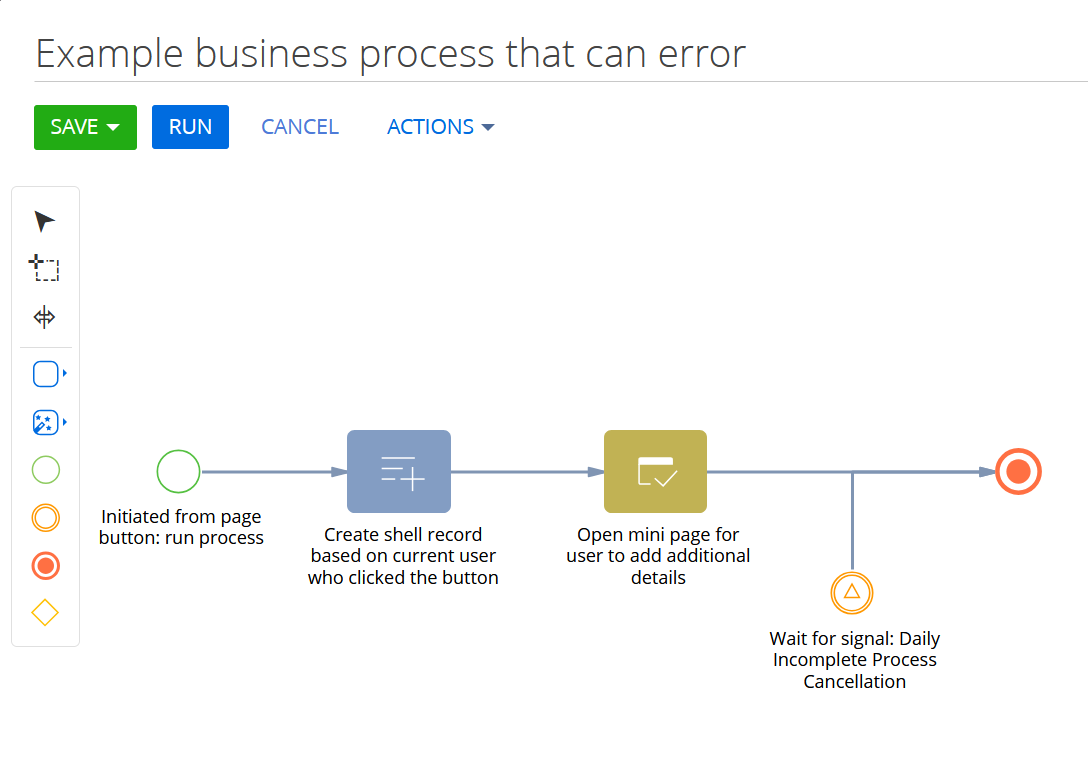 Figure 2. The original process updated with a Wait for signal event that provides an alternate end-of-day completion path.
Outcome 1: The user completes the mini page. The normal outgoing flow is activated and the process reaches its final element.
Outcome 2: The user does not complete the mini page before the scheduled cutoff. The active Wait for signal
event listens for DailyIncompleteProcessCancellation. When the signal is broadcast, the alternate path is activated and the process moves to its designated final element.
Step 1: Add the Wait for Signal Event
Add a Wait for signal intermediate event to the portion of the process that has a known risk of waiting indefinitely. In this example, the event is configured as an alternate path from the open-page element.
Creatio Academy explains that Wait for signal can resume a process when a corresponding signal is generated by a Throw signal event in another process, or when a monitored Creatio record is modified or deleted. For this
pattern, select Custom signal.
Implementation steps
- Open the business process that contains the page or user action that may remain unfinished.
- Identify the page element whose outgoing flow depends on the user completing the page. In the example, this isthe “Open mini page for user to add additional details” element.
- Add a Wait for signal intermediate event to the process diagram.
- Connect the page element to both the normal completion path and the Wait for signal event. This gives the process a normal user-completion route and a separate fallback route.
- Connect the outgoing flow of the Wait for signal event to the appropriate cleanup, status update, review, or final element.
Screenshot reference: Figure 2 shows the Wait for signal event branching from the open-page element and
leading to a final element.
Step 2: Configure the Custom Signal
• Set Which type of signal is received? to Custom signal.
• Enter a clear, unique value in the Signal field.
• Use the exact same signal name in the related Throw signal event.
• Choose the background execution setting based on the behavior required after the event.
Signal configuration checklist
- Select the Wait for signal element on the process canvas.
- Set Which type of signal is received? to Custom signal.
- Enter DailyIncompleteProcessCancellation in the Signal field, or use another unique name that clearly identifies the use case.
- Record the signal name exactly. The Throw signal process must use the same spelling.
- Leave Run following elements in the background unchecked when elements after the signal must open a page or display an interactive window.
- Save the process and validate that the fallback flow reaches the intended outcome.
Screenshot reference: Figure 3 shows Custom signal selected, the matching signal name entered, and the
background option unchecked
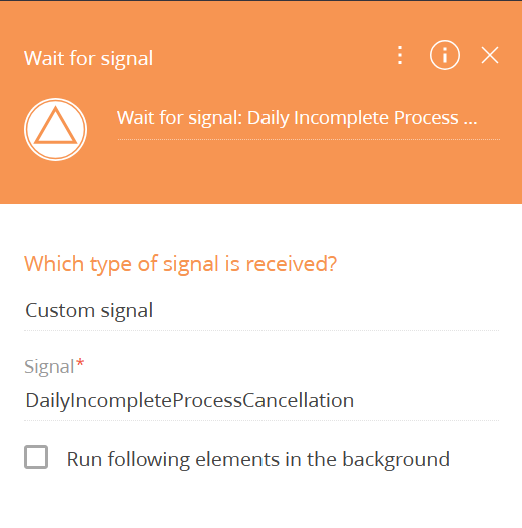 Figure 3. Wait for signal configuration using the custom signal DailyIncompleteProcessCancellation
Configuration note
In this example, Run following elements in the
Configuration note In this example, Run following elements in the background is unchecked. Creatio Academy states that selecting this setting causes subsequent user�action elements to run in the background, without automatically displaying loading masks or pop-up windows. Leave it unchecked when the outgoing path must preserve foreground page behavior.
Step 3: Create the Scheduled Signal Process
Create a separate process that starts on a timer, executes a Throw signal intermediate event, and reaches its final
element. The appropriate cadence depends on how long the business permits an incomplete process to remain
active.
Build the scheduled broadcaster
- Create a new business process dedicated to broadcasting the cleanup signal.
- Use a timer start event and configure the cadence that fits the business rule. The illustrated example runs daily at 9:00 PM Eastern.
- Add a Throw signal intermediate event after the timer.
- Connect the Throw signal event to a final element so the scheduled broadcaster itself completes after sending the signal.
- Save and activate the scheduled process.
Screenshot reference: Figure 4 shows the complete timer-to-signal-to-end process used in the example.
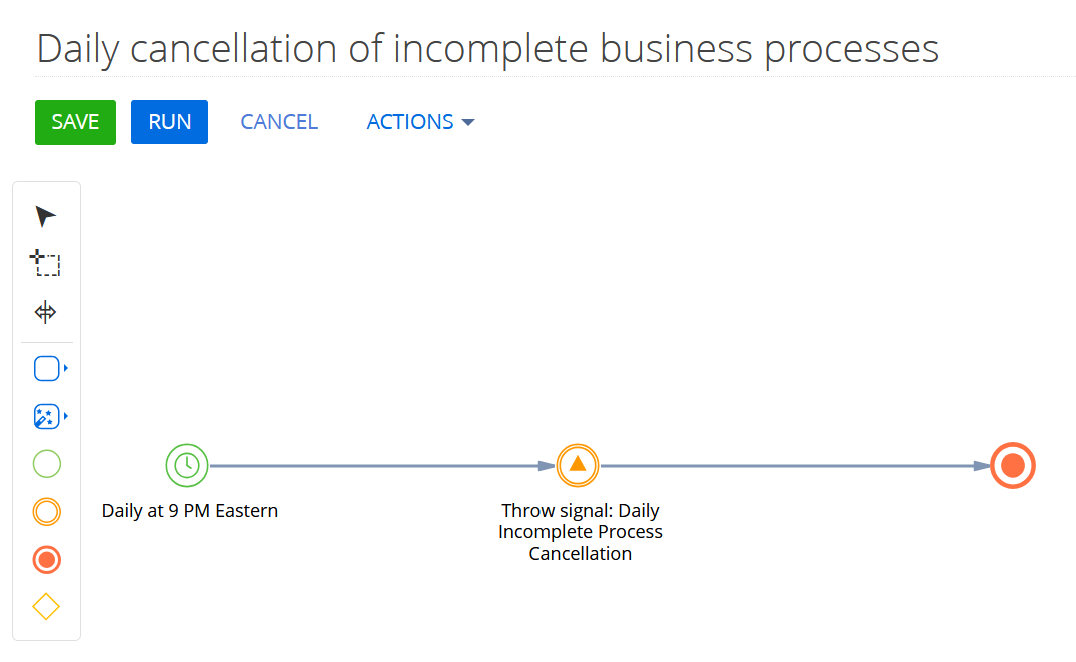 Figure 4. A scheduled process that broadcasts the DailyIncompleteProcessCancellation signal each day at 9:00 PM Eastern.
Step 4: Configure the Throw Signal Event
In the Throw signal event, enter the same custom signal value used by the waiting process: DailyIncompleteProcessCancellation. Creatio Academy describes Throw signal as a broadcast. Once activated, the event sends the configured signal and then activates its own outgoing flow. Matching, active Wait for signal elements can activate their outgoing flows.
Complete the signal pairing
- Select the Throw signal event in the scheduled process.
- In Which signal is generated?, enter DailyIncompleteProcessCancellation.
- Compare the value with the Signal field in the Wait for signal event. The names must match.
- Save the process, then test it manually in a non-production environment before relying on the timer.
- Review the Process Log and the affected record after the test to confirm that the waiting instance followed the intended fallback path and reached a controlled outcome.
| Process element | Signal Value |
|---|
| Wait for signal | DailyIncompleteProcessCancellation |
| Throw signal | DailyIncompleteProcessCancellation |
Understand the Broadcast Scope
Throw signal is not a one-to-one instruction for a single process instance. The signal is broadcast to active processes in Creatio. Matching Wait for signal elements whose incoming flows have been activated can respond. This makes the pattern useful for scheduled cleanup, but signal names must be specific.
Avoid a generic name such as CancelProcess. Prefer a descriptive value such as DailyIncompleteProcessCancellation, or a process-specific value such as DailyIncompleteContactRequestCancellation.
Important Business and Technical Considerations
A signal does not inherently cancel a process. The signal activates the outgoing flow of the matching Wait for
signal event. The process designer determines what happens next. The fallback path might:
• Move directly to a final element
• Update the shell record to an incomplete or expired status
• Create an activity for administrative review
• Notify the record owner
• Remove incomplete temporary data
• Route the record into a follow-up process
If the process creates a partial record, define whether that record should be retained, deleted, marked incomplete, reassigned, or otherwise handled. Do not use a timed signal to bypass a required approval, compliance review, validation, or customer-facing action. A mandatory step should usually expire, escalate, end, or route for review rather than be treated as successfully completed.
Testing the Design
Test the normal path. Start the process, complete the page, confirm the standard outgoing flow, and verify that the process reaches its final element.
Test the incomplete path. Start a new instance, leave the page incomplete, manually run the scheduled signal process in a test environment, and verify the fallback path and resulting record state
Test multiple instances. Complete some instances and leave others incomplete. Execute the Throw signal process and confirm that only active instances positioned to receive the matching signal follow the fallback path.
Expected result: completed page instances should follow the normal path. Incomplete instances that have reached the active Wait for signal event should follow the fallback path when the matching signal is broadcast.
Production-readiness check: verify the timer’s time zone, confirm the signal name in both processes, review the data outcome for the partial record, and document when an administrator should intervene.
A Proactive Approach to Process Health
Incomplete process executions are not always evidence of broken automation. In many cases, the process is behaving as designed and waiting for a user action that never arrives. The design gap is the absence of an alternate response to abandonment.
A Wait for signal event paired with a scheduled Throw signal process gives administrators and no-code developers a controlled fallback. The normal user path remains available, while incomplete executions receive a defined outcome after the business-approved waiting period.
The most important principle is not simply forcing a process to end. It is ensuring that every process has a meaningful, controlled outcome, even when the expected user action never occurs.
Creatio Academy References